|
Software screen shots (updated on
02-06-05)
Dear visitor, we have prepared this page to show you how the
software looks like from both sides, client and support.
Support Side (PC)
|
The support person loads the software and waits for an
incoming call.
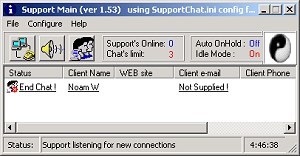
This is how the main application looks. The application is connected to the WSMS server
and just after an end of chat. |
|
 |
|
|
|
|
|
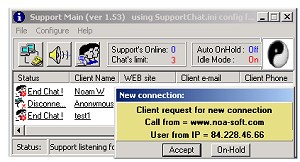
The main application receives a notification that a new
client needs support.
If used in multiple sites the operator can know from what
site the call comes from. |
|
 |
| |
|
|
|
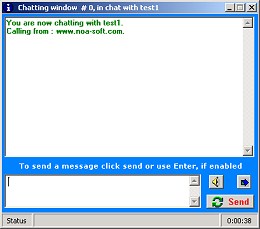
Excepting the request or opening a connection that was
placed at OnHold will open a new chat window. Every chat
session has its own chat window. One supporter can have
multiple simultaneous chat sessions at the same time. |
|
 |
| |
|
|
|
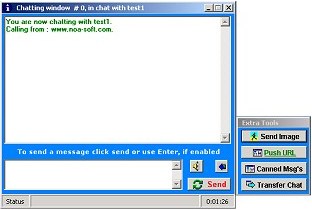
Opening the extended chat tools opens an extra space with
more buttons. Push URL, send images...
The reason for separating the extra tools is to give a
clean and simple environment.
|
|
 |
| |
|
|
|
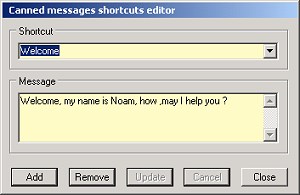
For better and faster response use the Canned Answers
editor to create ready made answers. Create long fraises for repeated questions. This saves
time during a chat session and gives faster response to your clients.
|
|
 |
| |
|
|
|
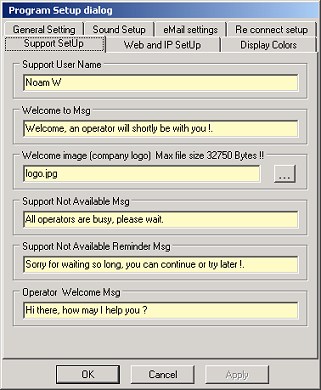
Support configuration setup. Setup user
name, and other automatic messages.
Upon software exit
the current setup is automatically saved to a default file.
Users can save the current configuration to any given name in
order to reload it later, this gives the flexibility of
different persons at the same PC. |
|
 |
| |
|
|
Client
Side
| |
|
|
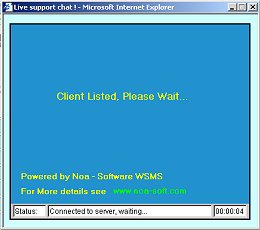
Client side right after loading the chat applet. First
message that the client gets, after listed at the server and
waiting to a support to answer. |
 |
|
|
|
|
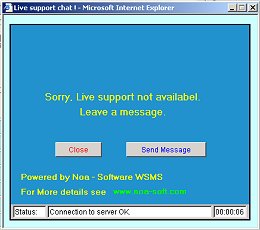
Client side right after getting the message "support not
available". |
 |
|
|
|
|
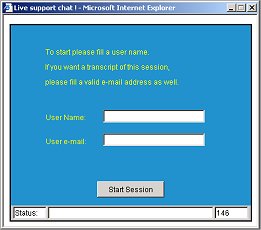
If connection was OK and the support excepted the call,
displaying the startup dialog. |
 |
|
|
|
|
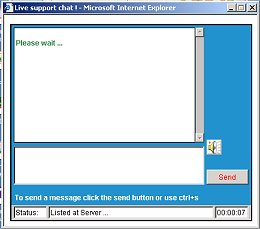
After clicking the Start Session button this dialog is
displayed. This is the chat display. The first message that
the user sees is Please wait..
This means that the server found someone to answer and the
client has to wait for one of the supporters to answer. |
 |
|
|
|
|
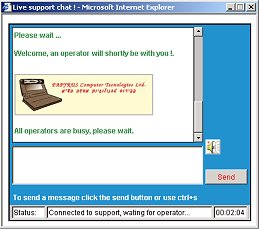
When finally a connection is made the client receives a
welcome message and a logo If it was defined by the support
group.
This will be displayed even if the the client was placed
OnHold.
If the client is placed OnHold he will periodically
receive a notification that he has to wait... |
 |
|
|
|
|
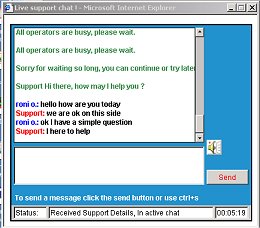
Finally someone has answered after some waiting and the
chat session begins... |
 |
|
|
|
|
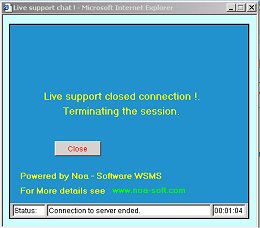
If the support side has ended the chat session this is the
message that the client gets... |
 |
|
|
|
|
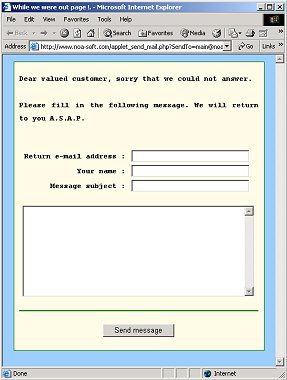
If support side not available or server is down, the
user has the option to send an offline message. This is how
the offline message form looks like. |
 |
|
|
|
Top

|